
Kadence - How to Use Block Visibility Settings
Kadence Blocks includes visibility settings that allow you to hide certain sections of your website on desktop, tablet, or mobile devices. This can be helpful when you want to create a different layout for a specific screen size or remove content that doesn't work well on smaller devices.
Keep in mind that visibility settings are only available on certain Kadence Blocks, including the Row Layout and Section blocks. These are container blocks that hold all the blocks within a given section.
1. Select the Correct Block
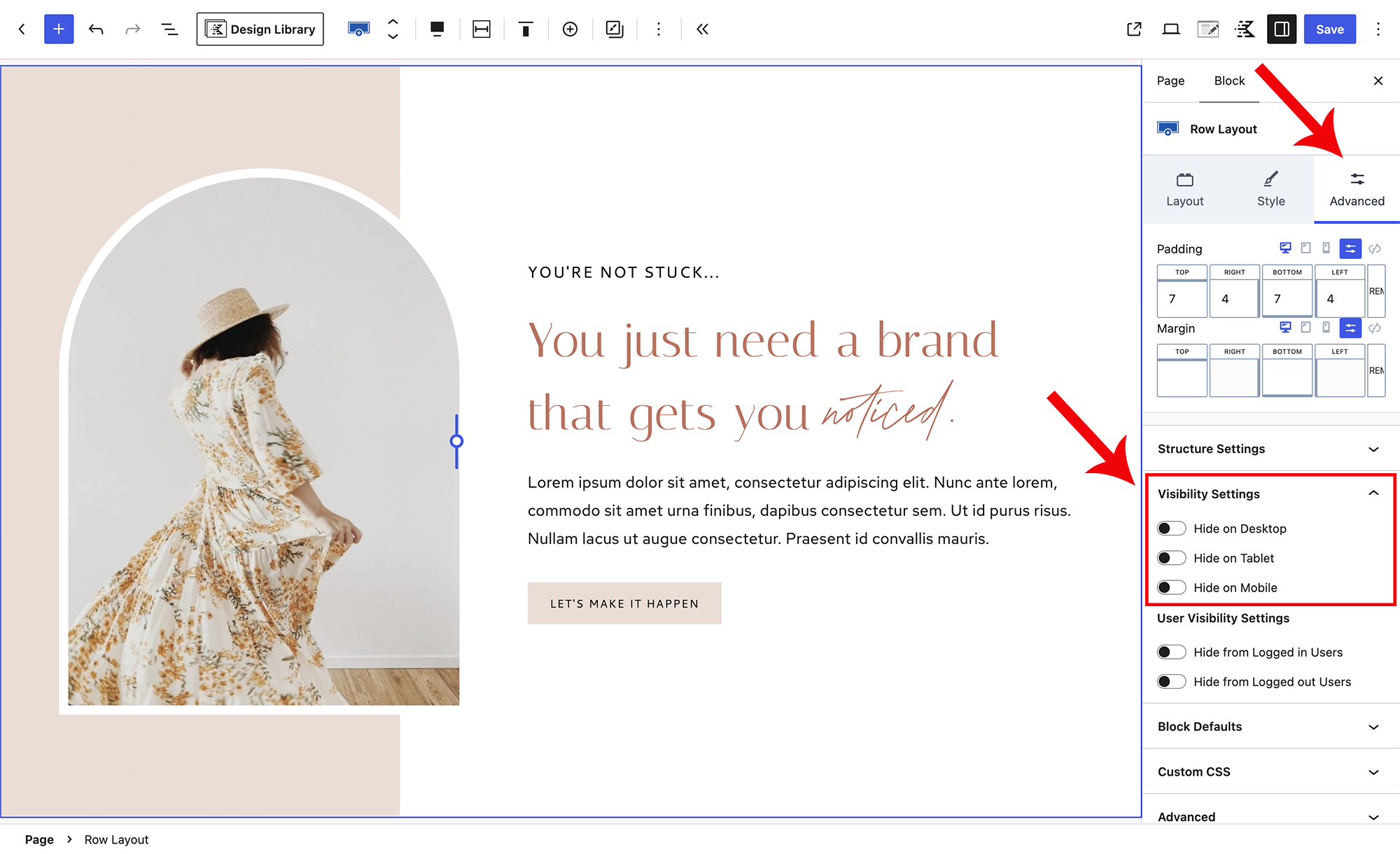
First, select the Row Layout or Section block that encompasses the entire section you want to hide. When the correct block is selected, you should see a blue outline around the full section, as shown in the screenshot below.
If you're having trouble selecting the parent block directly in the editor, open List View and locate the Row Layout or Section block that contains all of the content in that section. Selecting it from List View is usually the easiest way to make sure you have the intended block selected.
2. Open the Visibility Settings
With the Row Layout or Section block selected:
- Look toward the Block settings in the right sidebar.
- Select the Advanced tab.
- Open Visibility Settings.
You'll see three options:
- Hide on Desktop
- Hide on Tablet
- Hide on Mobile
Toggle on the device size(s) where you don't want the section to appear.
For example, if you want a section to display on desktop but not on phones, enable Hide on Mobile.
3. Save Your Changes
Once you've selected the appropriate visibility settings, click Save or Update in the upper-right corner of the editor.
The section will remain visible while editing your page, but it will be hidden on the selected device size(s) when viewing your live website.
A Note About Responsive Visibility
We recommend using visibility settings when you truly need different content or layouts for different devices. For most sections, Kadence Blocks' responsive settings can be used to adjust things like columns, spacing, font sizes, and alignment without creating entirely separate versions of the section.