
Brioche - Gingham Accent Background
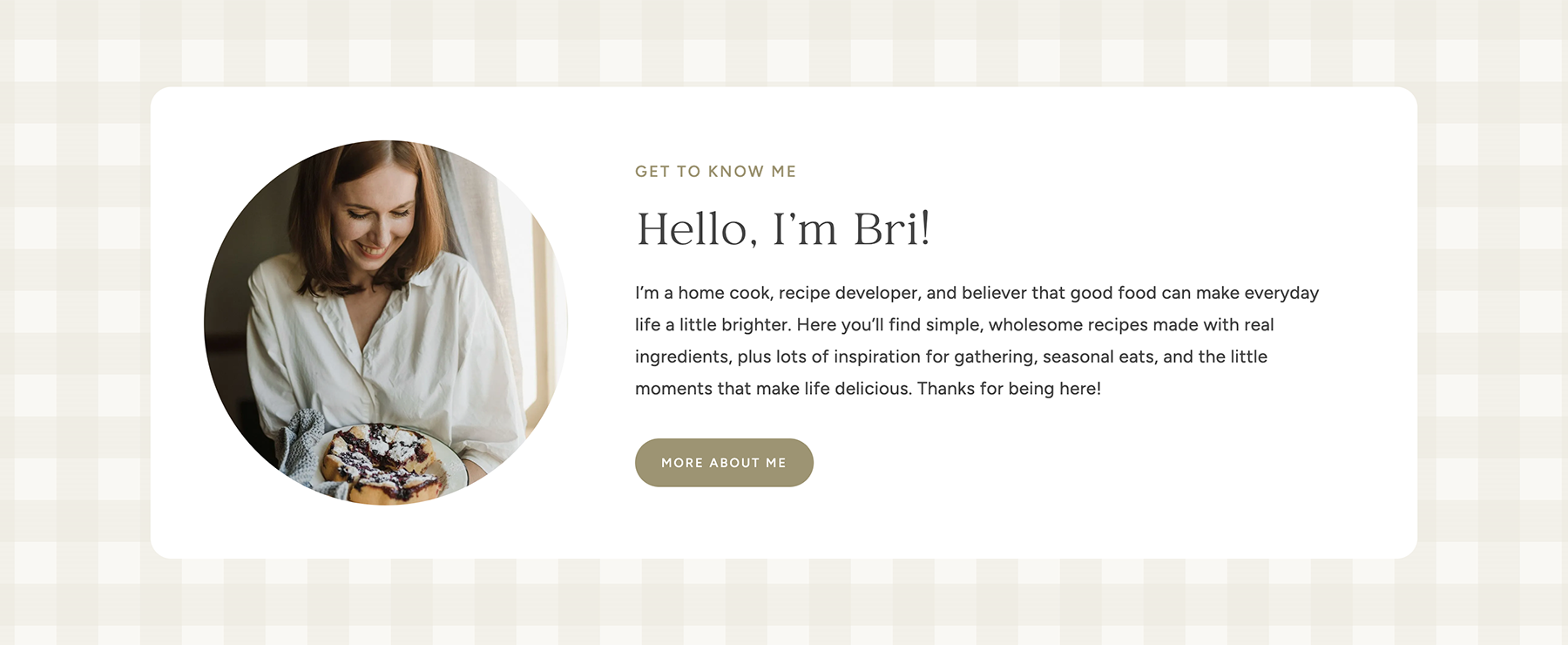
The Brioche theme includes a decorative gingham pattern used as a background in select sections throughout the theme. You can easily customize the color of the gingham pattern to match your branding, or remove the gingham effect from individual sections if you prefer a solid background.
Customizing the Gingham Colors
To customize the gingham pattern colors, go to Appearance > Customize > Brioche Theme Settings > Gingham Colors.
From here, you can adjust two settings:
- Gingham Color: Choose the color of the gingham stripes.
- Gingham Background: Choose the background color behind the gingham stripes.
Both settings allow you to select a color from your site's Global Palette or choose a custom color.
Once you've made your changes, click Publish to save. Your new colors will automatically apply to all sections using the Brioche gingham pattern.
Removing the Gingham Pattern From a Section
If you'd prefer not to use the gingham pattern in a particular section, you can easily remove it without affecting other sections on your site.
- Open the page in the WordPress block editor.
- Select the Row Layout block containing the gingham background.
- In the block settings sidebar, go to the Advanced tab. Open the Advanced drop-down, then find the Additional CSS Classes box.
- Find and remove the
brioche-ginghamclass. Note: If there are other CSS classes in the box, leave them there. - Save or update your page.
The gingham pattern will be removed from that section, while any other sections using the pattern will remain unchanged.