
Brioche - Recipe Card
This guide will walk you through setting up WP Recipe Maker to work with the Brioche theme. Brioche includes a custom recipe card template and three recipe snippet options, all designed to match your theme and make it simple for visitors to browse, save, and share your recipes.
Selecting the Recipe Template
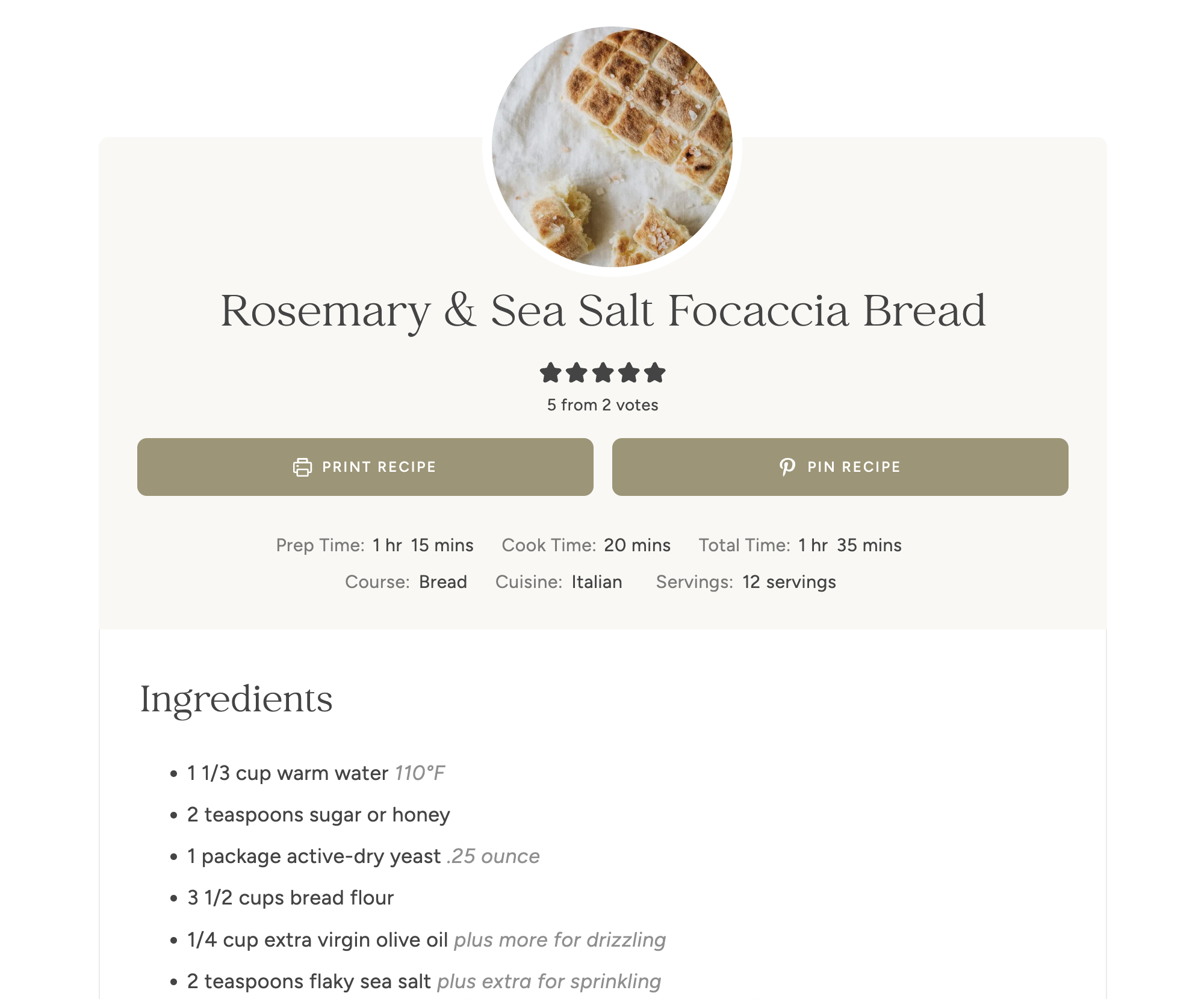
- Install and activate WP Recipe Maker.
- In your WordPress dashboard, go to WP Recipe Maker > Settings.
- Under Recipe Template, select Brioche.
- Click Save Changes at the top left of the settings panel.
Your recipes will now use the custom Brioche recipe card design!
Setting Up the Recipe Snippet
Recipe snippets display helpful links and information near the top of your recipe posts, making it easy for readers to see recipe stats and jump down to the recipe. You can view the recipe snippet live here!
Brioche includes three custom recipe snippet templates:
Brioche Snippet (Recommended)
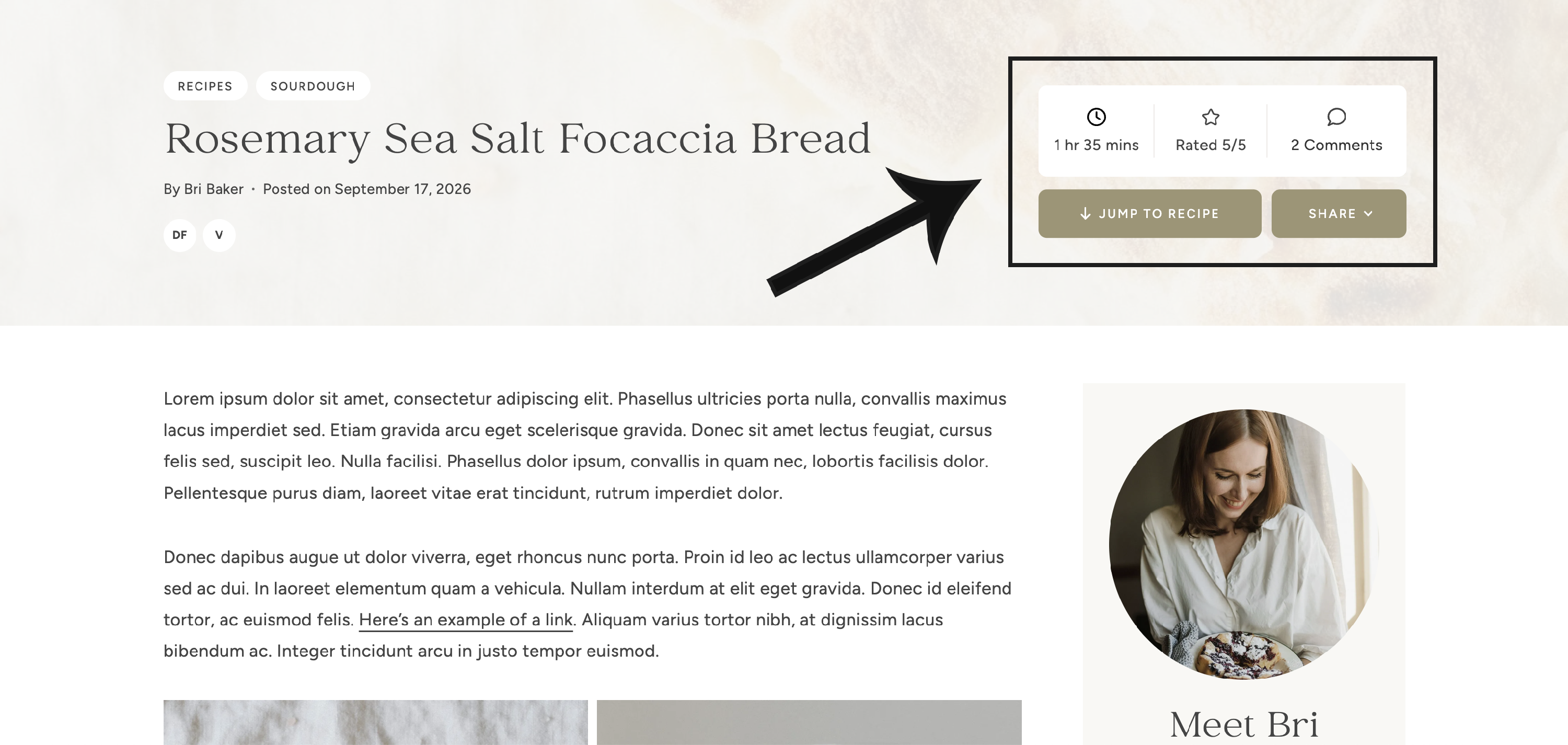
Brioche Snippet is the recipe snippet used in the Brioche demo. You can view it live here. This snippet displays recipe information and links directly in the Post Header Hero, including recipe time, recipe rating, comment count, Jump to Recipe link, and Share links drop-down.
This snippet is designed specifically for the Brioche Post Header Hero and therefore requires the Post Header Hero format to be enabled. We recommend choosing this snippet if you'd like your recipe posts to look and function like the Brioche demo.
A few things to keep in mind:
- Recipe Time: When creating or editing a recipe in WP Recipe Maker, enter the Total Time in the recipe editor's Time section. This is where the time displayed in the snippet is pulled from.
- Ratings: Star ratings are pulled automatically from WP Recipe Maker as readers rate your recipes. If there are no ratings yet, a "No Ratings" message will display.
- Comments: Make sure comments are enabled on your recipe posts so readers can leave comments and the comment count can display.
If you don't plan to use recipe times, ratings, or comments, we recommend choosing Brioche Snippet - Basic instead, which provides simple recipe navigation buttons without displaying additional recipe information.
Brioche Snippet - Basic

This is a simpler snippet that displays three buttons at the top of your post content:
- Pin Recipe
- Jump to Recipe
- Print Recipe
Choose this option if you prefer a more traditional recipe snippet, don't need the additional information and links included in the main Brioche Snippet, or don't plan to use the Post Header Hero.
Unlike the main Brioche Snippet, this option does not require the Post Header Hero.
Brioche Share Snippet

This snippet is designed for adding share buttons to individual recipes rather than displaying automatically. If you'd like to use it, we recommend placing it right below a recipe card block!
How to Enable Automatic Recipe Snippets
You can choose either Brioche Snippet or Brioche Snippet Basic to display automatically in your recipe posts.
- In your WordPress dashboard, go to WP Recipe Maker > Settings.
- Under Recipe Snippet, enable Automatically add snippets.
- Under Food Recipe Snippet Template, select your preferred template:
- Brioche Snippet: For the full recipe snippet displayed in the Post Header Hero, as shown in the Brioche demo.
- Brioche Snippet Basic: For simple Pin, Jump, and Print buttons displayed at the top of your post content.
- Click Save Changes at the top left of the settings panel.
That's it! Your selected recipe snippet will now appear automatically on posts containing a WP Recipe Maker recipe.
How to Use WP Recipe Maker & Create Recipes
Once you've configured your recipe template and snippet settings, you're ready to start adding recipes!
WP Recipe Maker offers excellent documentation covering everything from creating your first recipe to customizing recipe settings. You can find their getting started guides here.
Recommendation for Performance
We recommend enabling one additional setting to help keep your site running smoothly.
Go to WP Recipe Maker > Settings > Performance and enable Only load assets when needed.
This prevents WP Recipe Maker's scripts and styles from loading unnecessarily on pages that don't contain recipes, such as your homepage and other standard pages. This can help improve your site's loading speed.