
Brioche - Category Archive Pages
Category archive pages are where all of the posts assigned to a particular blog category are displayed. The Brioche theme includes customizable category archive pages, with options for adjusting the layout, displaying category descriptions, and adding a Browse menu to help visitors explore related categories.
In this article, we'll walk through how to set up and customize your category archive pages!
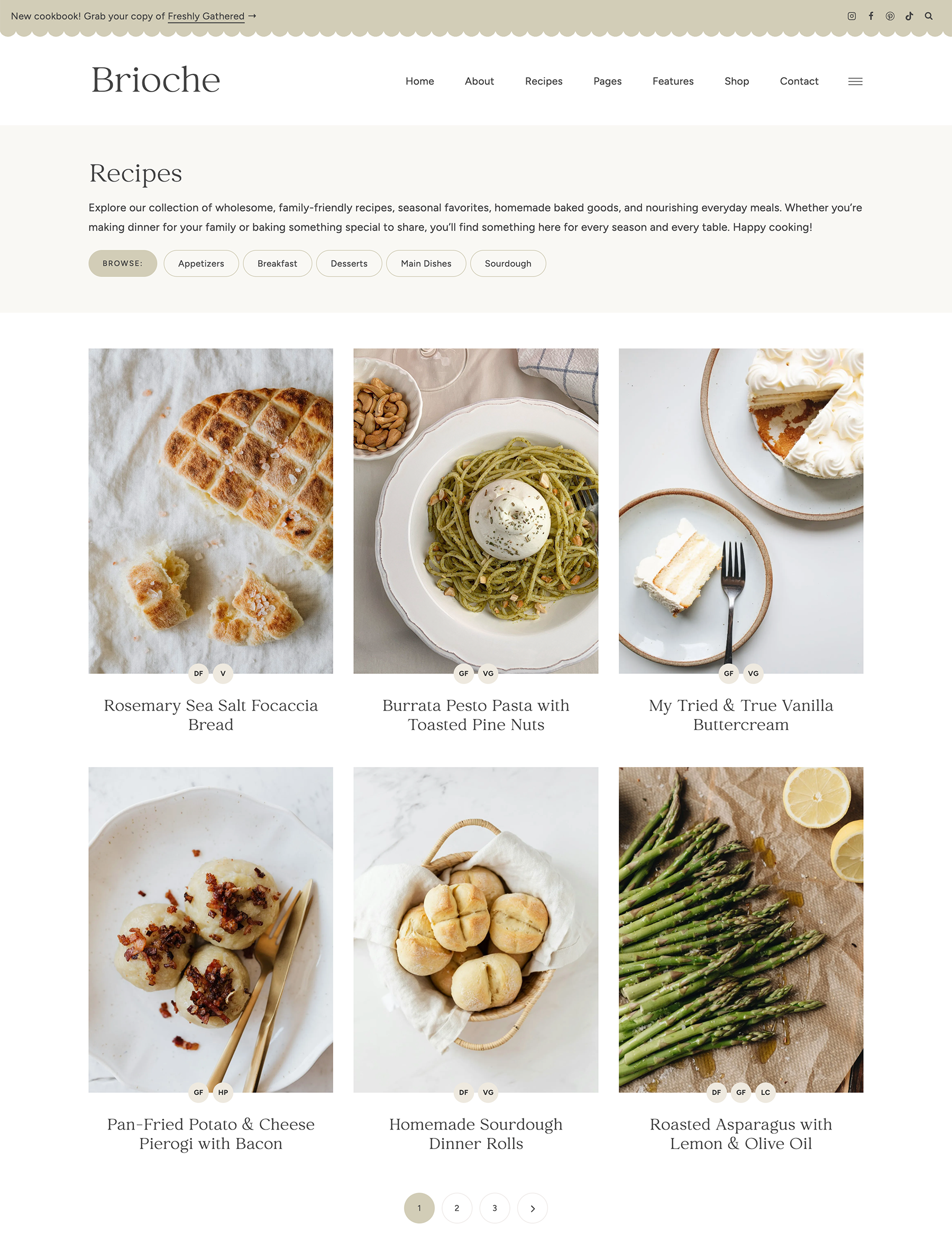
How to Create Category Archive Pages
Category archive pages are created automatically whenever you create a category in WordPress. There's no need to create a separate page for each category!
To create a new category, go to Posts > Categories in your WordPress dashboard. Enter a name for your category, then click Add New Category.
Any posts you assign to that category will automatically appear on its archive page. Existing categories on your site will also use the Brioche category archive layout.
For more information, see our guide to creating and using categories.
Customize the Category Archive Layout
The general layout of your category archive pages is controlled by Kadence.
Go to Appearance > Customize > Posts/Pages Layout > Archive Layout to access these settings.
From here, you can:
- Change the number of post columns (1, 2, 3, or 4)
- Enable or disable the sidebar
- Customize the archive title layout, alignment, and appearance
- Show or hide post elements, such as the date, excerpt, and Read More button
- Adjust the featured image appearance
- And more!
Under the Design tab, you can further customize the appearance of your category archive pages, including title and description colors, background color, fonts, and more.
Subcategory "Browse" Menu
Brioche includes a built-in Browse menu feature that helps visitors explore subcategories directly from your archive pages.
For example, if you have a parent category called Desserts with subcategories for Cakes, Cookies, Pies, and Brownies, the Browse menu can display links to those subcategories on your Desserts archive page.
The Browse menu is generated automatically based on your existing categories and subcategories, so there's no need to create or maintain separate navigation menus.
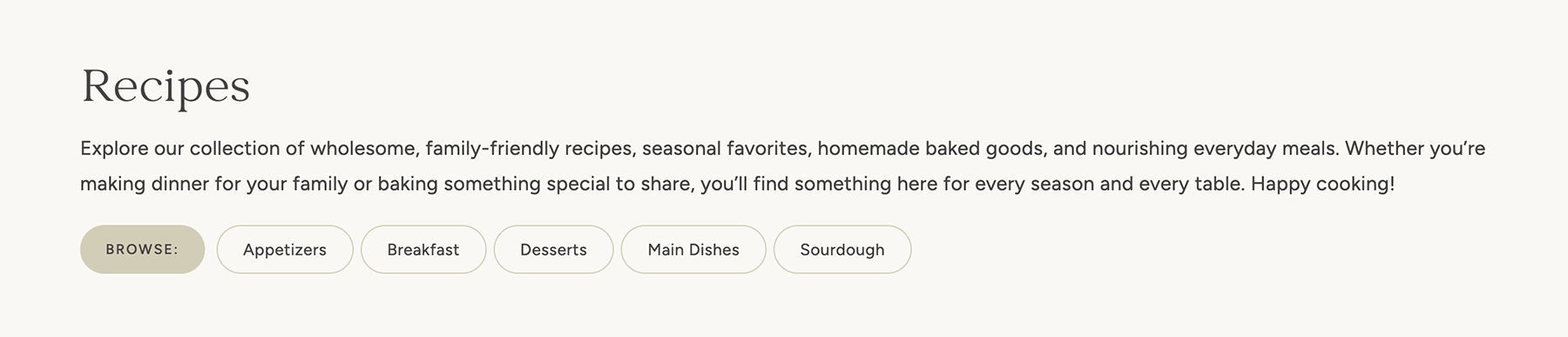
How to Set Up the Browse Menu
To display a Browse menu on a category archive page, you'll first need to create subcategories.
- Go to Posts > Categories in your WordPress dashboard.
- Enter a name for your new subcategory, such as Cookies.
- Under Parent Category, select the category it belongs to, such as Desserts.
- Click Add New Category.
- Repeat for any additional subcategories.
Once your subcategories are created, Brioche will automatically display them in the Browse menu on the parent category archive page.
Note: The Browse menu only displays on category pages where subcategories are available. If a category doesn't have any applicable subcategories, the menu won't appear.
Customize the Browse Menu
Brioche includes several settings for controlling the appearance of the Browse menu.
Go to Appearance > Customize > Brioche Theme Settings > Archive Settings.
Here, you'll find the following options:
- Enable Browse Menu on Categories: Show or hide the Browse menu on category archive pages when subcategories are available.
- Enable Browse Menu on Taxonomies: Show or hide the Browse menu on custom taxonomy archive pages, such as Diets.
- Browse Menu Text: Customize the text displayed before the menu. For example, you could use "Browse," "Sort By," or "Explore."
- Browse Menu Style: Choose between two display styles: Pills or Links.
- Browse Background Color: Change the background color of the Browse label when using the pill style.
- Browse Text Color: Change the text color of the Browse label.
- Category Border Color: Customize the border color around the individual category pills.
You can select colors from your site's Global Color Palette or choose a custom color.
Browse Menu Display Styles
There are two styles available for the Browse menu:
- Pills: Displays categories as individual outlined pills, with a separate Browse label.
- Links: Displays categories as simple text links for a more minimal appearance.
You can switch between these styles at any time under Appearance > Customize > Brioche Theme Settings > Archive Settings > Browse Menu Style.
Change the Order of Categories in the Browse Menu
If you'd like to customize the order in which subcategories appear, you can use the free Category Order and Taxonomy Terms Order plugin.
Once the plugin is installed and activated, go to Posts > Taxonomy Order and drag your categories into your preferred order.
Other Category Settings
Here are a few additional settings you can customize on your category archive pages.
Category Descriptions
The Brioche demo includes a short description below the title on certain category archive pages. You can add your own descriptions to introduce each category and give visitors a little more context about the posts they'll find there.
To add a category description:
- Go to Posts > Categories in your WordPress dashboard.
- Hover over the category you'd like to edit and click Edit.
- Enter your text in the Description field.
- Click Update to save.
Your description will appear below the category title, provided that archive descriptions are enabled in your Kadence Archive Layout settings. You can add descriptions to as many or as few categories as you'd like.
Category Featured Images
The images displayed in your category archive post grid come from each post's featured image.
To add or change a featured image, open the post editor and locate the Featured Image setting in the post sidebar. For more information, see our guide to setting featured images.
If you'd like to change the size or proportions of the images displayed on your category archive pages, follow our guide to changing archive image sizes.
Change the Number of Post Columns
By default, Brioche displays posts in a 3-column grid on category archive pages. You can customize the number of columns to suit your preferences.
See our tutorial on changing the number of columns on category archive pages for step-by-step instructions.
Change the Number of Post Columns on Mobile
By default, Brioche displays posts in a 2-column grid on mobile.
If you prefer posts to display in one larger column on mobile instead, go to Appearance > Customize > Brioche Theme Settings > Archive Settings. Scroll down and find the Mobile Archive Columns setting and select your preferred option.
Recipe Diet Labels
If you're using the Brioche Recipe Tools plugin, you can display Diet Labels on the recipe posts in your category archive grids. These labels help visitors quickly identify recipes that are gluten-free, vegetarian, high protein, or other dietary preferences.
To enable or disable Diet Labels on archive pages, go to Appearance > Customize > Brioche Theme Settings > Diet Labels. From here, you can enable or disable Diet Labels on archive pages.
For more information about creating and customizing Diet Labels, see our Recipe Diet Labels tutorial.
Pagination Display Settings

Pagination is the numbered page navigation that appears at the bottom of your category archive pages, allowing visitors to browse through additional posts. Brioche includes several options for customizing the appearance of pagination throughout your site.
Go to Appearance > Customize > Brioche Theme Settings > Pagination.
Here, you can customize:
- Pagination Style: Choose whether pagination buttons are round or square.
- Active Background Color: Change the background color of the active page number and hover state.
- Active Text Color: Change the text and arrow color of the active page number and hover state.
These settings apply to pagination site-wide, including category archives and other paginated post listings.