
Sophia - Offscreen Menu
The Sophia theme features an offscreen menu that displays at the top right corner of your site on desktop. When the hamburger menu button is clicked, the contents of the offscreen menu area will appear.
Offscreen menu when closed:
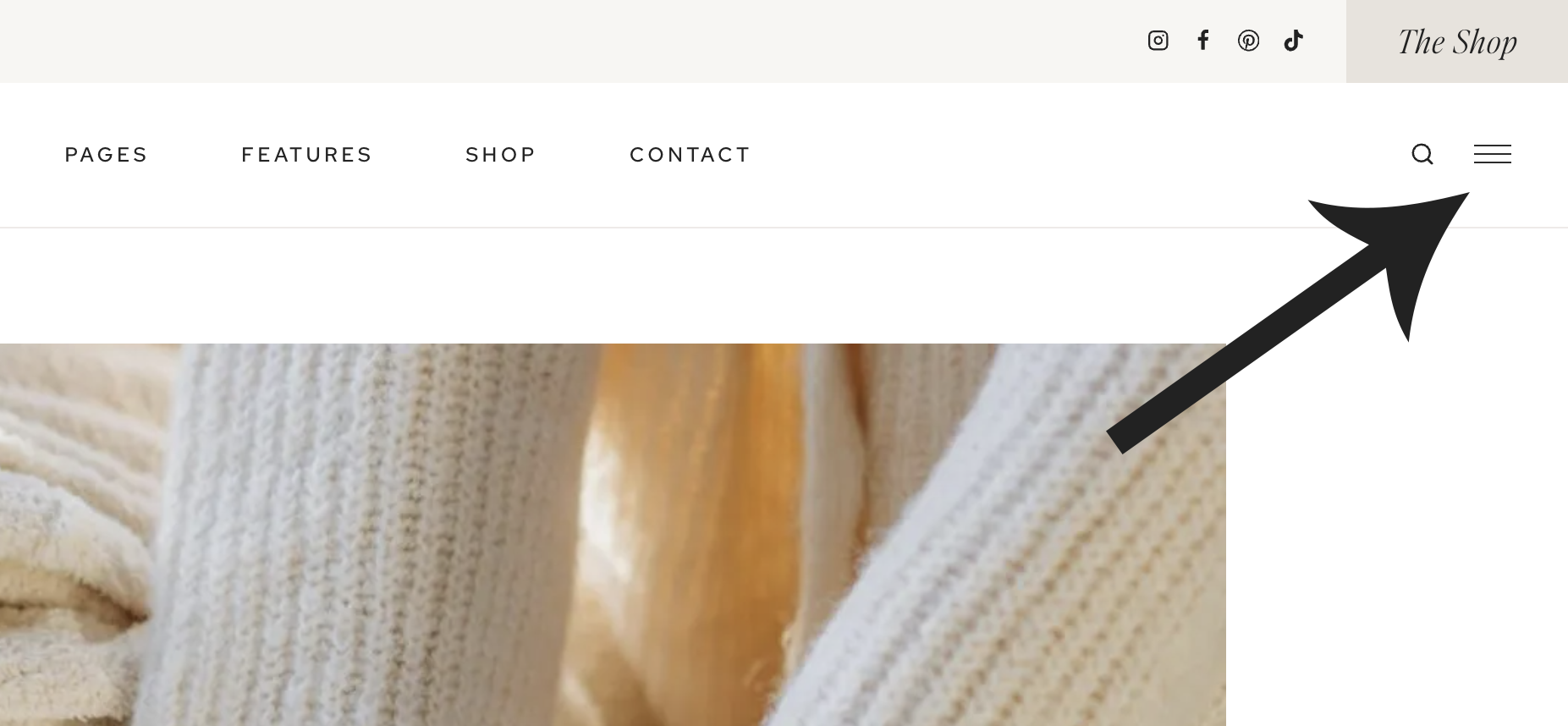
Offscreen menu when opened:

Setting up the Offscreen Menu
The content of the offscreen menu is housed inside a custom widget area, which can be found at Appearance > Widgets > Offscreen Menu Widget Area. As long as you imported the demo, the offscreen menu should be fully set up for you out of the gate!
Adding your own navigation links
- Go to the Kadence tab in your WordPress dashboard > Navigations.
- Click "Edit" under the Offscreen Menu.
- To add your own links, click on the menu and use the top toolbar to insert your own links, create sub-menus, etc. If you prefer, you can also edit the existing menu items with your own text by clicking and typing.
Visit the Kadence Adv Navigation Block article for more guidance on using this block.
The menu is pre-styled for you, but you're more than welcome to change the font or font size, customize the colors, etc — which can all be done from the Block Settings on the right.
Adding your social links
Go to Appearance > Widgets > Offscreen Menu Widget Area. Click on each social icon to add your social profile URL.
To remove an icon, click on the icon. In the toolbar, select the 3 vertical dots icon and click "Delete."
To add a new icon, click on the Social Icons block and select the "+" icon to the right of the icons. You can search for an icon in the search bar.
"The Shop" button
To change "The Shop" button text, click on the button and add your own text. Use the toolbar to link it to your preferred destination. Visit the Kadence Button Block article for more guidance on using this block.
Other content
Want to add other types of content to the offscreen menu? You sure can! Any available block or widget can be added to the Offscreen Menu Widget Area. Some ideas could be an image, a short bio about yourself, or a signup form.
Customizing the Appearance of the Offscreen Menu
Offscreen Menu Colors
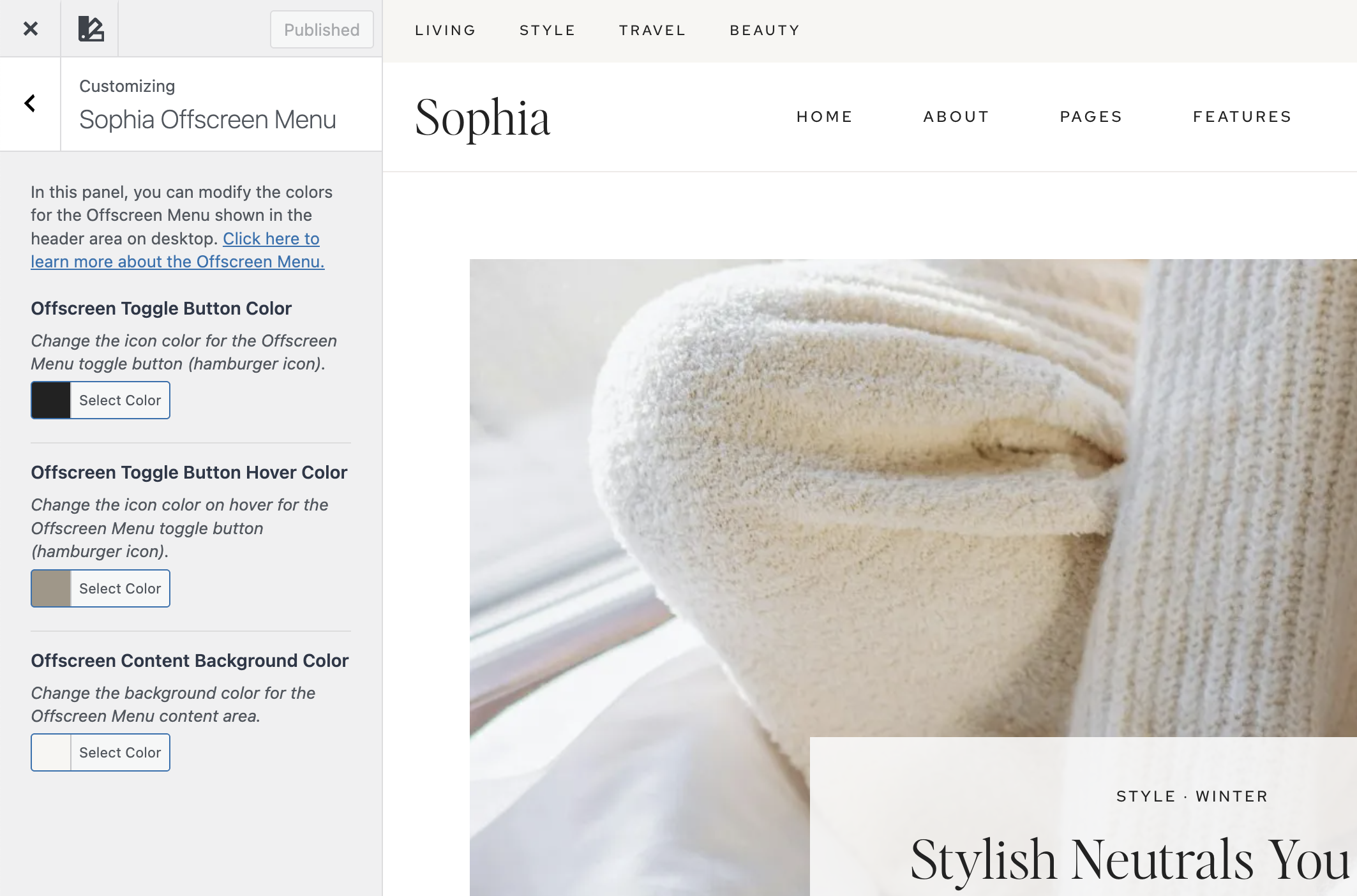
Go to Appearance > Customize > Sophia Offscreen Menu. Here, you can change the background color of the toggle button, hover color, and content background color.
Note: Other colors — including the color of the navigation links, social icons, and button — can be changed directly in the block settings. For that reason, there are not color settings for those elements in the Customizer.
Offscreen Menu Font
The font for the navigation links can be modified at Kadence > Navigations > Offscreen Menu. Click on the menu and then use the Block Settings panel on the right to select your preferred font(s).
Removing the Offscreen Menu
Don't want to use the Offscreen Menu? Here's how to remove it:
- Go to Appearance > Customize > Header.
- Once in the Header section, you'll see the Header Builder appear at the bottom of your screen.
- In the Middle Row, find the HTML element (this contains the Offscreen Menu toggle button) and click the X icon to delete it.
Note: We don't recommend removing the widgets from the Offscreen Menu widget area, just in case you want to use the menu again in the future. Removing the toggle will fully disable the Offscreen Menu!
Adding Offscreen Menu back
If you removed the Offscreen Menu and would like to add it back, here are instructions:
- Go to Appearance > Customize > Header. Once in the Header section, you'll see the Header Builder appear at the bottom of your screen.
- Click on the Middle Row, Right Column to add a new element.
- Select "HTML."
- In the HTML Editor box, add: [sophia_offscreen_toggle]