
Brioche - Footer
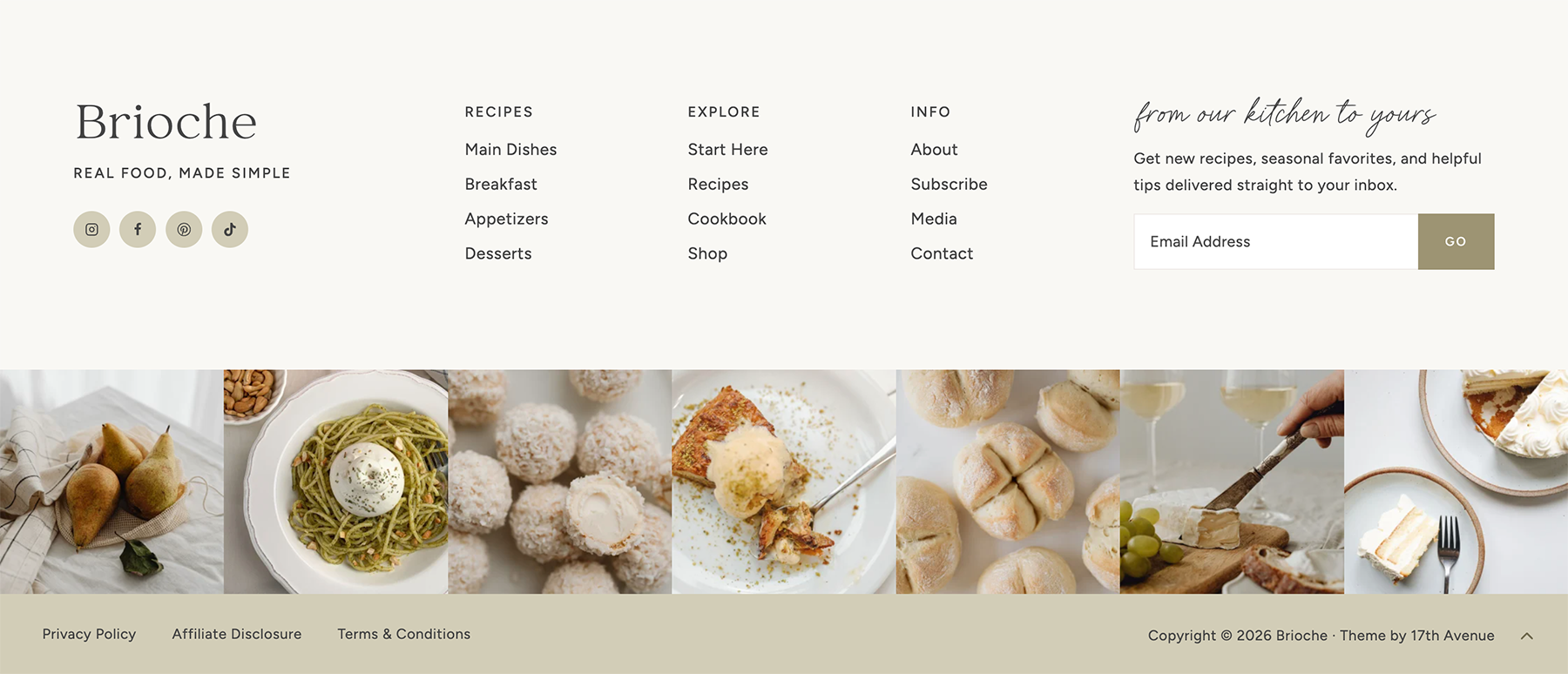
5-Column Footer
If you imported the demo, these widgets should already be all set up for you. You'll just need to replace the existing text and links with your own!
Go to WordPress > Appearance > Widgets. The 5-column footer in your theme utilizes the following widget areas:
- Footer 1: "Brioche" heading, tagline, and social icons
- Footer 2: Navigation menu
- Footer 3: Navigation menu
- Footer 4: Navigation menu
- Footer 5: Newsletter signup form
You're more than welcome to customize the footer, add/remove widgets, etc. Below we'll go over how the widgets are set up in the demo, but you can add just about anything you want! Other ideas could be a disclaimer, categories widget, archives widget, search widget, and more! You can also fully customize the layout of the footer using the Kadence Footer Builder.
Footer 1
Footer 1 displays:
- "Brioche" - Advanced Heading Block set to H3. This is intended to act as your site title, but feel free to replace it with whatever text you'd like.
- "Real Food, Made Simple" - Advanced Heading Block set to H4. This is intended to act as your site tagline, but feel free to replace it with whatever text you'd like.
The social icons underneath the text can be controlled at Appearance > Customize > Footer > Social. Learn more about social icons.
Footer 2, 3, & 4
Footer 2, Footer 3, and Footer 4 each display a Navigation Menu widget.
- Go to Appearance > Menus and create 3 separate menus to use in your footer. A uniform number of links is strongly encouraged for correct alignment of the footer menus, e.g. 4 or 5 links in each menu.
- Go to Appearance > Widgets > Footer 2. Click on the Navigation Menu widget, then select the new menu you created.
- Repeat for the other menus in Footer 2, 3, and 4.
Footer 5
Click here for instructions on adding your own newsletter signup form to this area.
Instagram Feed
Click here for instructions on setting up the Instagram feed. The Instagram Feed is located inside Footer 6.
Bottom Footer Navigation Menu
In the demo, the footer navigation menu contains the Privacy Policy, Affiliate Disclosure, and Terms & Conditions links.
- Go to Appearance > Menus and create a menu you'd like to use in the footer navigation area.
- Under Menu Settings > Display Location, select Footer to add the menu to your footer.
- To customize the appearance of the menu (font, spacing, etc), go to Appearance > Customize > Footer > Footer Navigation > Design.