
Brioche - Offscreen Menu
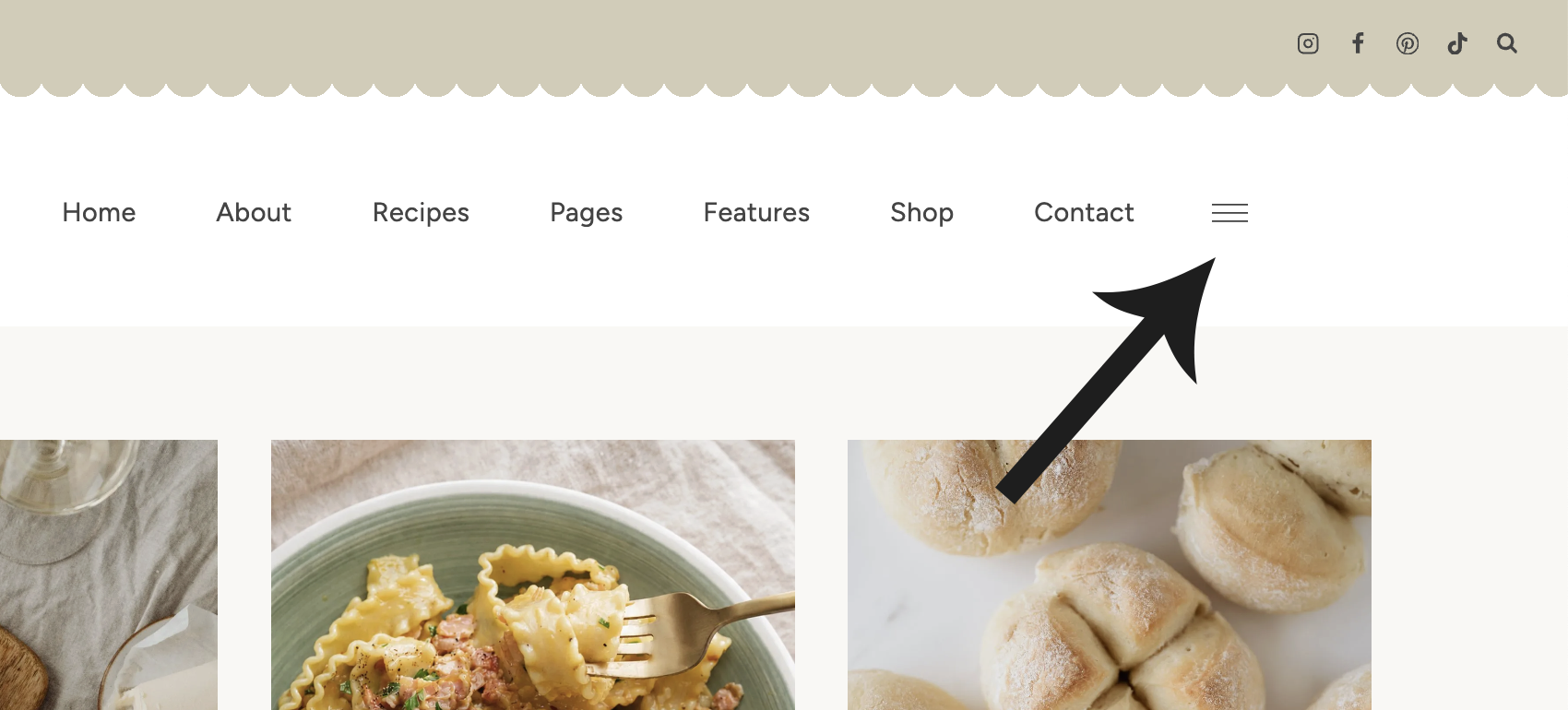
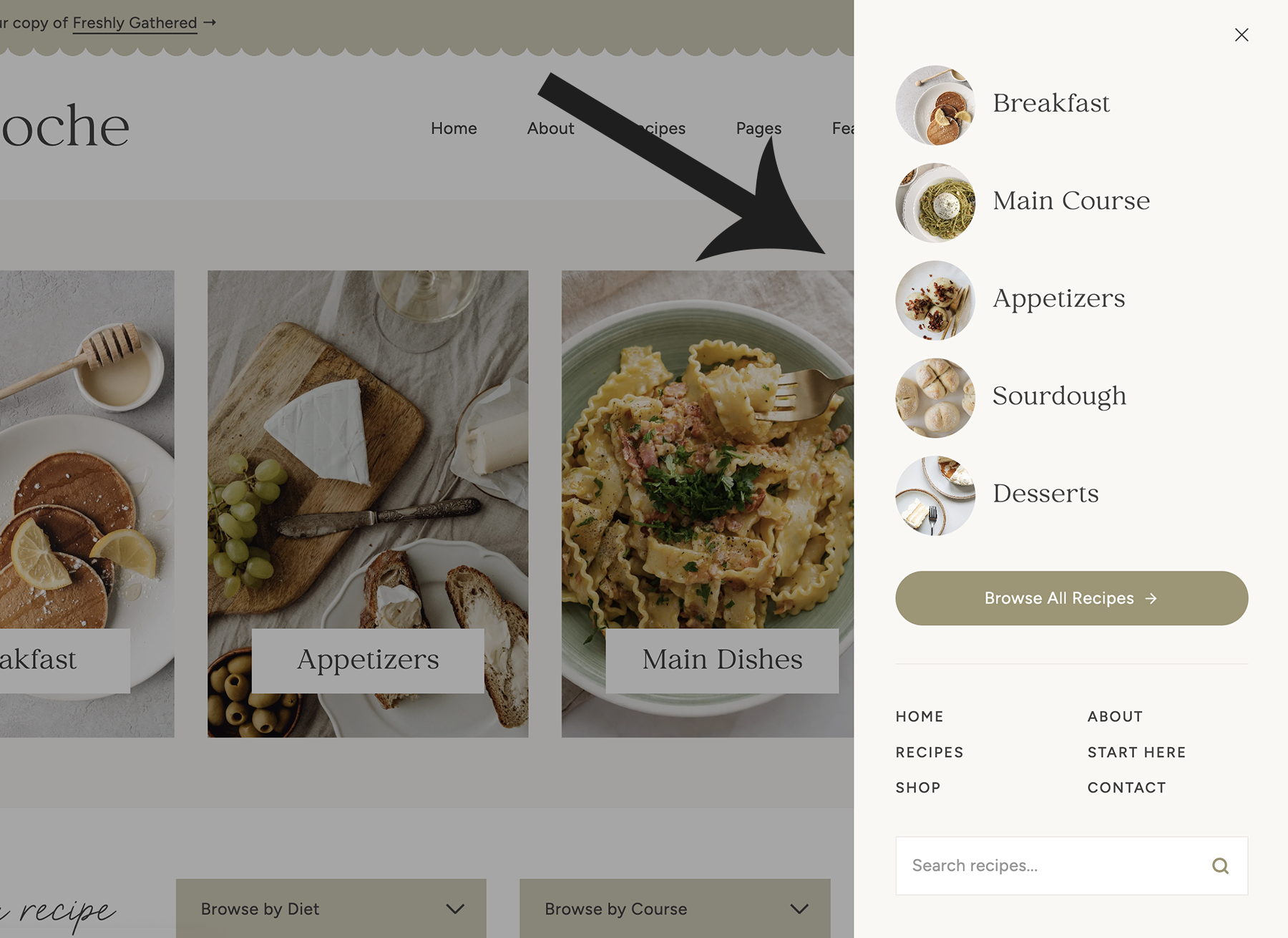
The Brioche theme features an offscreen menu that displays at the top right corner of your site on desktop. When the hamburger menu button is clicked, the contents of the offscreen menu area will appear.
Offscreen menu when closed:
Offscreen menu when opened:
Setting up the Offscreen Menu
The content of the offscreen menu is housed inside a custom widget area, which can be found at Appearance > Widgets > Offscreen Menu Widget Area. As long as you imported the demo, the offscreen menu should be fully set up for you out of the gate!
By default, the offscreen menu displays:
- 5 featured categories with images
- Browse All Recipes button
- 6 navigation links
- Search bar
5 featured categories
- Go to Appearance > Widgets > Offscreen Menu and click open the widget area.
- To replace an image, click on one of the existing images and select Replace to choose your own image.
- To update the category text (e.g. "Breakfast"), click on the text and type to replace it with your own.
- Each category section is linked using a Section Overlay Link. Using List View, select the parent section for a category. In the block settings on the right, scroll down and open Overlay Link. Update the link and link text with your own. How to get the link (URL) for a category →
- Repeat for the four other categories.
- Make sure to click Update when you're done!
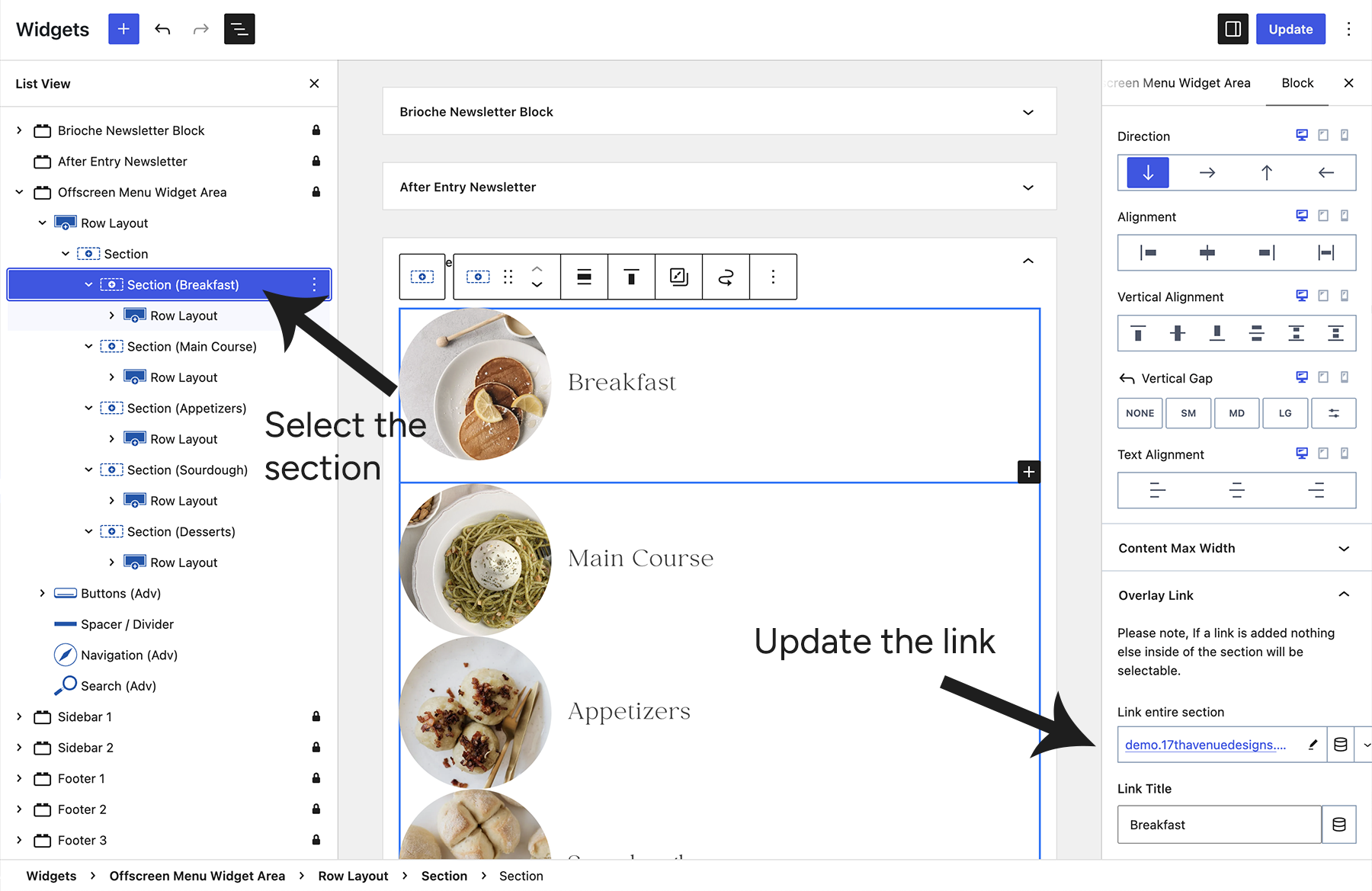
Don't want to display all 5 categories - maybe just 3 or 4? Use List View (as shown in the screenshot above) to delete the category section(s) you don't need.
"Browse All Recipes" button
To edit the button, go to Appearance > Widgets > Offscreen Menu. Scroll down below the 5 categories and you'll find the button. This is a Kadence Buttons block that you can update with your own text, link, colors, etc.
6 Navigation Links
The offscreen menu displays 6 navigation links toward the bottom of the menu panel.
- Go to the Kadence tab in your WordPress dashboard > Navigations.
- Click "Edit" under the Offscreen Menu.
- To add your own links, click on the menu and use the top toolbar to insert your own links. If you prefer, you can also edit the existing menu items with your own text by clicking and typing.
Note: We strongly recommend using an even number of links here (such as 4, 6, or 8). The menu is coded to display in 2 columns.
Visit the Kadence Adv Navigation Block article for more guidance on using this block.
The menu is pre-styled for you, but you're welcome to change the fonts, customize the colors, etc — all of which can be done from the settings panel on the right.
Search bar
If you'd like to modify the search bar, go to Appearance > Widgets > Offscreen Menu Widget Area > Search.
Change the "Search recipes..." text: Click on the Search widget, then look to the block settings on the right. Go to Style > Input Style > Placeholder text, and enter your preferred text.
Change the search icon color: Click on the Search widget, then look to the block settings on the right. Go to Style > Icon Color to change the icon color and hover color.
Other content
Want to add other types of content to the offscreen menu? You sure can! Any available block or widget can be added to the Offscreen Menu Widget Area. Some ideas could be an image, a short bio about yourself, or a signup form.
Customizing the Offscreen Menu Appearance
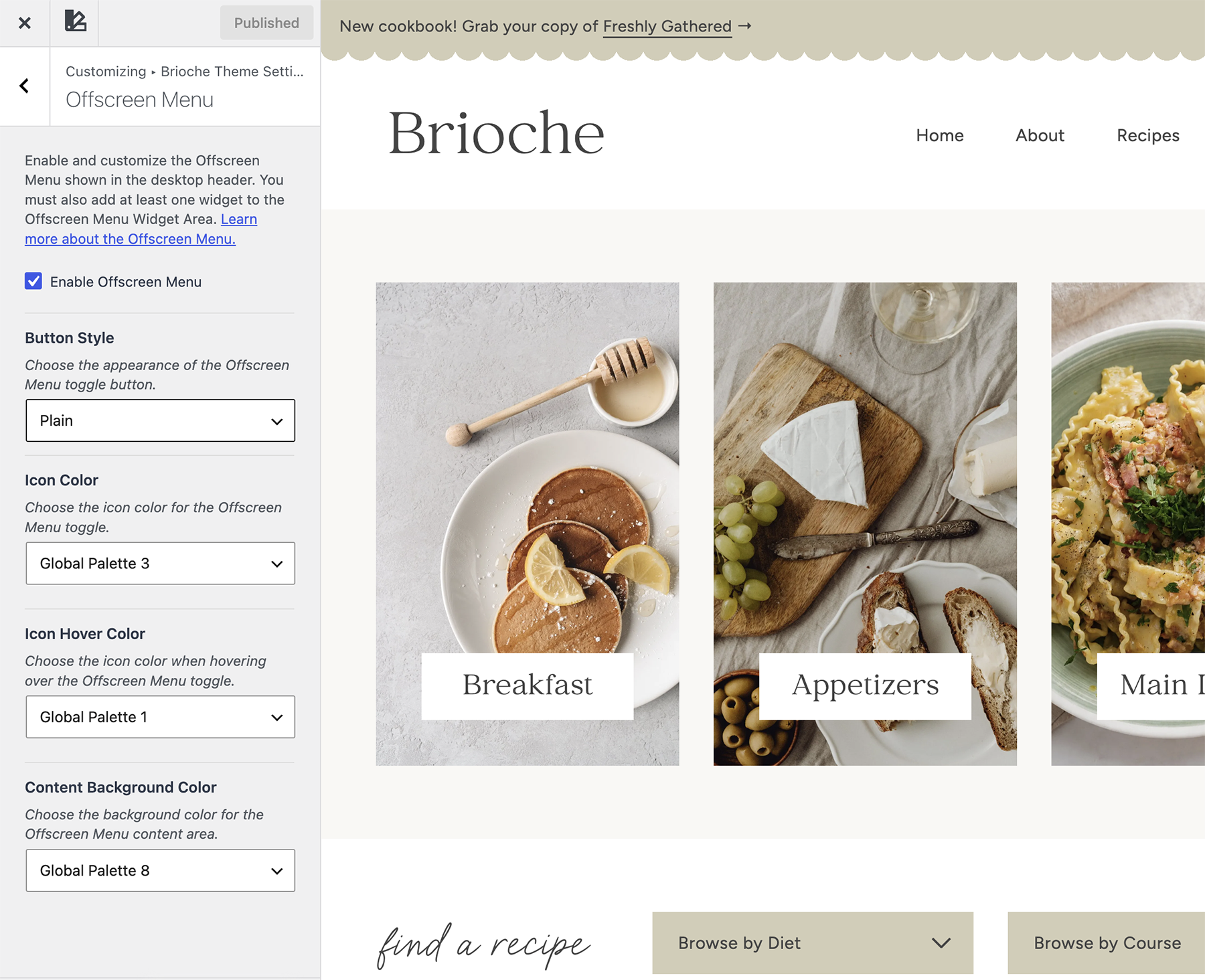
You can customize the appearance of your Offscreen Menu at Appearance > Customize > Brioche Theme Settings > Offscreen Menu.
The following settings are available:
- Enable Offscreen Menu: Show or hide the Offscreen Menu toggle button in your desktop header.
- Button Style: Choose from four toggle button styles: Plain, Outline Circle, Solid Square, or Solid Circle.
- Icon Color: Choose the default color of the menu toggle icon.
- Icon Hover Color: Choose the color of the menu toggle icon when hovered over.
- Content Background Color: Choose the background color of the Offscreen Menu panel.
- Additional Settings: If you select Outline or Solid Square/Circle under Button Style, additional color settings will appear allowing you to customize the border and background color.
You can use colors from your site's global color palette or select custom colors to match your design.
Removing the Offscreen Menu
Don't want to display the Offscreen Menu? Go to Appearance > Customize > Brioche Theme Settings > Offscreen Menu. Uncheck "Enable Offscreen Menu" to disable it.